
Contents
Overview: Automatic Payroll Data Push
Step-by-step instructions: Getting started
Step 1 — Turn on Push Updates in your settings
Step 2 — View your integration activity
Step 3 — Reauthorise (iPayroll only)
What payroll integrations are supported?
How do I see what has changed against an employee and what was sent to payroll ?
Overview: Automatic Payroll Data Push
Keep your payroll system up to date automatically. When employee details change in MyHR, those updates are sent directly to your connected payroll — no manual re-entry needed.
How it works
Once enabled, MyHR will regularly send employee detail changes to your payroll system. This includes things like pay rate updates, bank account changes, and personal details — so your payroll always reflects the latest information from MyHR.
This is separate from how MyHR has always handled leave — leave requests have always synced in near real-time and continue to work the same way.
Things to be aware of
Pay rates — Only the first/main pay rate is updated. If your payroll supports multiple pay rates, additional rates will need to be managed directly in payroll.
Employment type (Xero NZ & AU) — If an employee changes to a fixed-term employment type, this won't update automatically via data push. You'll need to update this directly in Xero.
Hours of work — Standalone changes to hours of work may not push through on some payrolls, including CloudPayroll and Xero AU. If employment type changes from part-time to full-time in CloudPayroll, hours of work may be cleared — check and update in payroll if needed.
Weekly wage employees (iPayroll) — Employees on a weekly wage are not currently supported for automatic data push via iPayroll. These will need to be managed manually.
Step-by-step instructions: Getting started
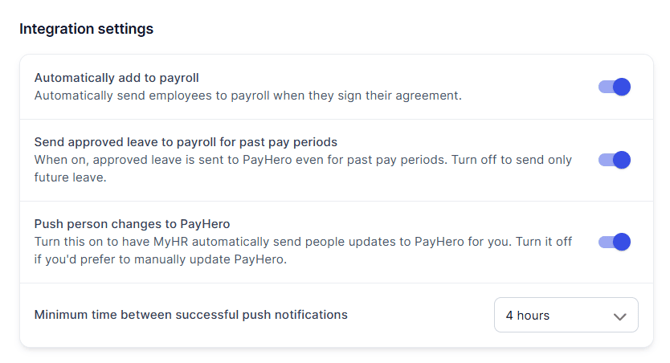
Step 1 — Turn on Push Updates in your settings
Once enabled, head to your integration settings in MyHR and turn on Push Updates. You can choose how frequently updates are sent and set up email notifications for your payroll admin.
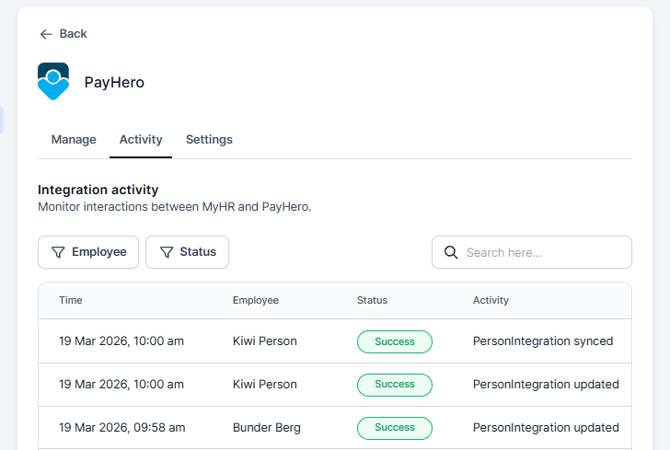
Step 2 — View your integration activity
Once connected, your activity history gives you a clear picture of what's changed and what's been sent to payroll. Click any row for a detailed breakdown.
Step 3 — Reauthorise (iPayroll only)
If you're using iPayroll, you'll need to reauthorise your connection to MyHR if you want pay rates to be included in our updates. If you don't want this, you don't need to reauthorise however, if your connection does need to be reauthorised, the pay rates will be included from that point onwards.
FAQs & troubleshooting
The tables below shows what MyHR sends across for each payroll, both on new employee creation and as ongoing automatic updates. Note, once a person is connected, we take a snapshot of the persons details in Payroll overnight and push only the fields that have actually changed — we don't resend everything every time.
What gets sent to payroll?
NZ Payrolls
| Field | iPayroll 🇳🇿 | PayHero 🇳🇿 | Xero NZ 🇳🇿 |
|---|---|---|---|
| First and last name | ✅ | ✅ | ✅ |
| ✅ | ✅ | ✅ | |
| Phone | ✅ | ✅ | ✅ |
| Date of birth | ✅ | ✅ | ✅ |
| Gender | ✅ | ✅ | ✅ |
| Address | ✅ | ✅ (no country) | ✅ |
| Job title | ✅ | ✅ | ✅ |
| Start date | ✅ | ✅ | ✅ |
| End date | ❌ | ✅ | ✅ (fixed-term only) |
| Employment type | ✅ | ✅ | ✅ |
| Pay rate (first/main) | ✅ | ✅ | ✅ |
| Pay frequency | ✅ | ✅ | ✅ |
| Hours per week | ✅ | ✅ | ✅ |
| IRD number | ✅ | ✅ | ✅ |
| Tax code | ✅ | ✅ | ✅ |
| KiwiSaver | ✅ | ❌ | ❌ |
| Bank account | ✅ | ✅ | ✅ |
| Emergency contact | ❌ | ✅ | ❌ |
| User defined groups | ✅ | ❌ | ❌ |
| Cost Centres | ✅ | ❌ | ❌ |
AU payrolls
| Field | CloudPayroll | MyHR Payroll | Xero AU |
|---|---|---|---|
| First and last name | ✅ | ✅ | ✅ |
| ✅ | ✅ | ✅ | |
| Phone | ✅ | ✅ | ✅ |
| Date of birth | ✅ (required) | ✅ | ✅ |
| Gender | ✅ | ✅ | ✅ |
| Address | ✅ | ✅ | ✅ |
| Job title | ✅ | ✅ | ✅ |
| Start date | ✅ | ✅ | ✅ |
| End date | ❌ | ❌ | ❌ |
| Employment type | ✅ | ✅ | ✅ |
| Pay rate (first/main) | ✅ | ✅ | ✅ |
| Pay frequency | ✅ | ✅ | ❌ |
| Hours per week | ✅ | ✅ | ✅ |
| Tax file number | ✅ | ✅ | ✅ |
| Tax scale / threshold | ✅ | ✅ | ✅ |
| Bank account | ✅ | ✅ | ✅ |
| User defined groups | ✅ (if applicable) | ❌ | ❌ |
| Cost Centres | ✅ (if applicable) | ❌ | ❌ |
What payroll integrations are supported?
Automatic data push is available for:
- iPayroll
- CloudPayroll
- PayHero
- Xero NZ Payroll
- Xero AU Payroll
- MyHR Payroll AU
Custom payroll connections powered by Zapier are not currently supported.
How do I see what has changed against an employee and what was sent to payroll ?
The company activity view gives you a full picture of what's changed and what's been sent to payroll. You can see:
- Which employee details were updated and when
- Whether the data push was successful
- A detailed breakdown of each change
If a push doesn't go through, MyHR will retry automatically and you'll have clear visibility of the status in your activity view.
Known limitations
Pay rates — first/main rate only
Only the first or main pay rate is updated via automatic push. If an employee has multiple pay rates in payroll, additional rates need to be managed directly in the payroll system.
iPayroll — weekly wage employees
Employees on a weekly wage are not supported for automatic data push. These need to be managed directly in iPayroll.
iPayroll — pay rates require re-authorisation
Pay rates were recently included in our connection to iPayroll. To enable this, you can reach out to us to put your integration into a re-authorisation state. Once you re-authorise, pay rates will now be included in your automatic data push. See Re-authorising your integration to iPayroll.
Xero NZ and AU — fixed-term employment type
If an employee changes to a fixed-term employment type, this won't update automatically. You'll need to update it directly in Xero.
CloudPayroll and Xero AU — hours of work
Standalone changes to hours of work may not push through reliably on CloudPayroll and Xero AU. If an employment type changes from part-time to full-time in CloudPayroll, hours may be cleared — check and update in payroll if needed.
CloudPayroll — User-Defined Groups and Cost Centres
If UDGs or cost centres are mandatory in your CloudPayroll account, a default value must be set in your MyHR integration settings. Without it, new employee creation will fail.
CloudPayroll — date of birth required
Date of birth is a required field for CloudPayroll. If it's missing from an employee's MyHR profile, their creation in payroll will fail.
Leave Sync
Leave works separately from the employee data push and has always synced in near real-time.
- Leave approved in MyHR is sent to payroll automatically
- Leave balances are pulled from payroll and displayed in MyHR
- MyHR retries failed leave syncs up to 5 times — if all attempts fail, the payroll administrator receives an email
For leave balance display logic and payroll-specific behaviour, see Payroll integrations — FAQs and Troubleshooting.
Always approve leave in MyHR, not directly in payroll. Leave created or approved in the payroll system directly won't appear in MyHR — there's no linked ID to connect the two records.
Support Options
If you need more help, our HR teams are always here for you!
If you have questions, message the MyHR team via the Ask Us chat feature or call us on:
NZ - 0800 69 47 69 (0800 MY HR NZ) or +64 9 887 3345
AU - 02 7908 2240