
Overview
Organise employee documents your way. Owners and managers with the Add or manage people permission can add, rename, archive, restore, and move files between folders.
These features are available in both the organisation's documents area and individual employee profiles.
Search for a folder
Find a specific folder without scrolling through the full list.
- Go to the organisation's documents area or individual employee profiles page
- Use the search bar at the top of the folder list
- Type part or all of the folder name - matching folders appear as you type
Available to: all users, this is available in both the Organisation’s documents area as well as the documents against a person.
Sort folders
Change the order folders are displayed to find what you need faster.
- Go to the organisation's documents area or individual employee profiles page
- Select the Sort option above the folder list
- Choose Alphabetical or Last updated
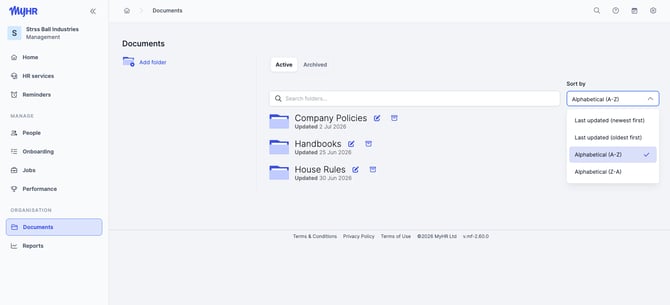
Your sort preference is saved for the next time you’re back on the page
Add a folder
- Go to the organisation's documents area or individual employee profiles page
- Select Add folder
- Enter a name for the folder
- Select Save

Move files between folders
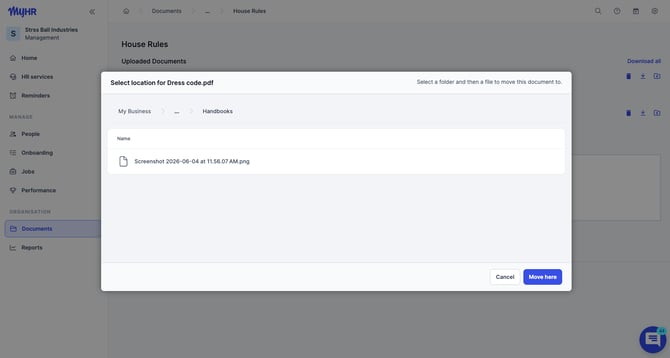
The move icon inside a folder lets you move individual files to a different folder.
- Go to the organisation's documents area or individual employee profiles page
- Open the folder containing the file you want to move
- Select the move icon next to the file
- Choose the destination folder
- Confirm

Things to know:
- The move icon only appears on folders you've created yourself via Add folder.
- Folders MyHR generates automatically or have previously custom made for you (e.g. Employment Agreement, Performance Review, Disciplinary Support, Recruitment) are system-controlled and locked — files inside them can't be moved.
- The move icon only shows on a folder that contains more than one file. A custom folder with a single file in it won't show
Delete a folder
Archived folders move to the Archived tab - nothing is permanently deleted.
- Go to the organisation's documents area or individual employee profiles page
- Find the folder you want to archive
- Select the delete icon next to the folder name
- Select Confirm
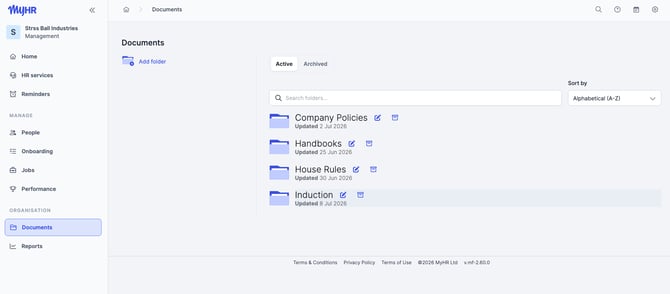
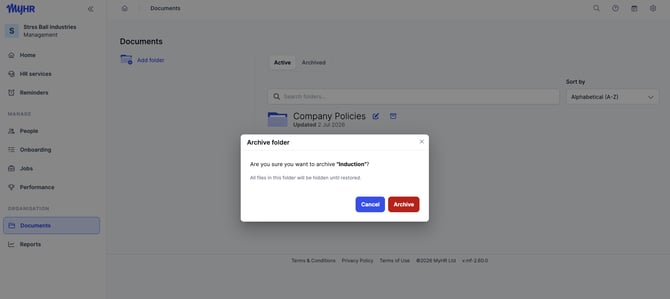
Before you archive a folder or document, if it has files in an onboarding plan, you'll see a warning that the files won't be available in those plans until they're restored.
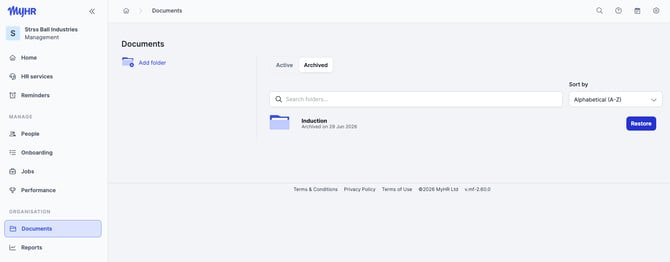
Restore an archived folder
- Go to the organisation's documents area or individual employee profiles page
- Select the Archived tab
- Find the folder and select Restore
Rename a folder
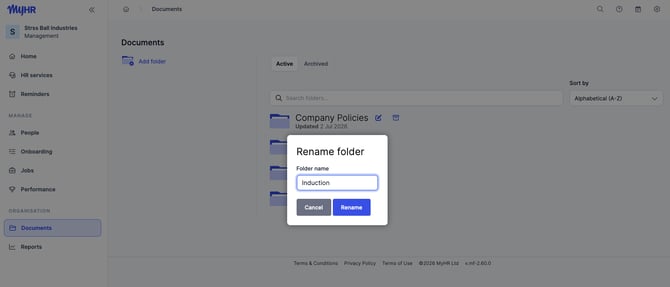
- Go to the organisation's documents area or individual employee profiles page
- Find the folder you want to rename
- Select the pencil icon next to the folder name
- Enter the new name
- Select Save
Things to know:
- Your documents stay put - only the folder name changes
- Renaming a top-level folder also renames any matching sub-folders automatically
- The renamed folder appears with the new name for all users, including the employee in self-service
FAQs
Can employees rename their own document folders?
No, renaming is only available to owners and managers with the Add or manage people permission. Employees in self-service can search and sort, but cannot rename folders.
Why can't I rename a specific folder?
Some folders are created automatically by MyHR when processing HR requests (e.g. Employment Agreement, Performance Review, Disciplinary Support). These system-created folders are locked. If you need a folder renamed that falls into this category, contact us via Ask Us.
If I rename a folder, does it update for everyone?
Yes, folder names are shared across all users with access to that employee's profile. The new name will appear for managers, owners, and the employee in self-service.
Can I create new folders?
Yes, select Add folder from the employee's Documents page to create a custom folder.
Why can't I see the move icon next to a file?
Two possible reasons: the file sits in a folder MyHR generates automatically (these are system-controlled and locked), or the folder only has one file in it — Move only appears once a folder holds more than one file.
Need help?
Contact us via the Ask Us chat in MyHR, or call:
- NZ: 0800 69 47 69 or +64 9 887 3345
- AU: 02 7908 2240
- CA: 1 855 694 7224