
Contents
- Where to find it
- Who can see it
- Editing the timeline
- What shows on the timeline
- Frequently Asked Questions
- Support options
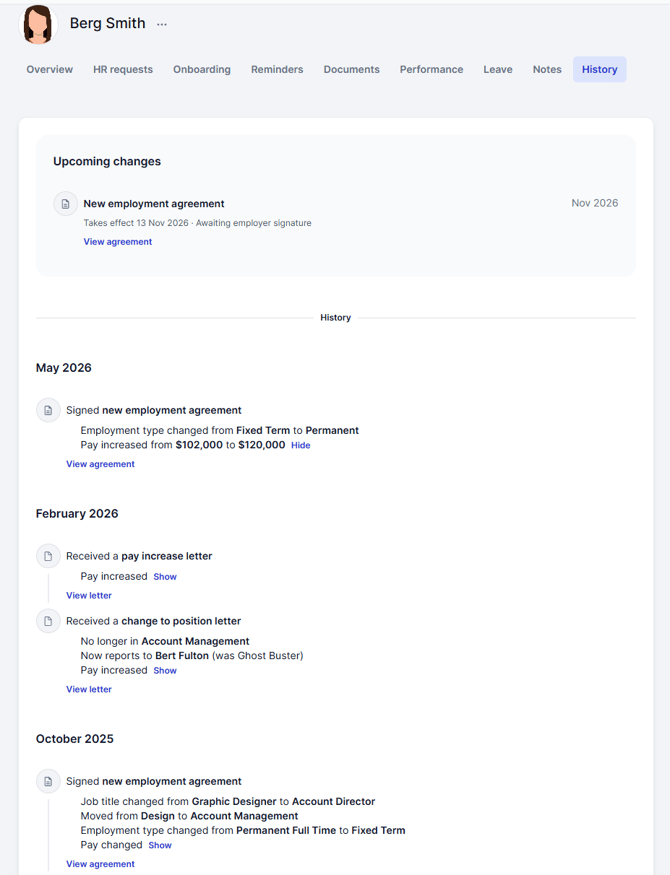
Started, signed, promoted, pay rise, new manager. It's all there, in order, no digging required. No more scrolling through old emails or squinting at spreadsheets to work out when Sam moved to Marketing. Open their profile and the story's right there.
Where to find it
-
Head to People, pick an employee, and open the History tab. That's where their whole story lives.
Who can see it
Account owners, plus any manager who has permission to view that person. If a manager can open someone's profile, they can see their history too.
Can I edit it?
Nope. The timeline is read-only. It's a record of what's already happened, built from the changes made in MyHR. To change something, update their details or raise a request the way you normally would, and the timeline catches up on its own.
What shows up
We keep it to the big moments. The stuff you'd actually want to know when you're prepping for a review, a pay chat, or a "wait, when did that happen?" moment.
|
Milestone |
What you'll see |
|---|---|
|
Started at your business |
Olivia started as Product manager |
|
Signed employment agreement |
Olivia signed her employment agreement |
|
Pay change |
Pay increased from $60,000 to $75,000 |
|
Department change |
Moved from Sales to Marketing |
|
New manager |
Now reports to Ronald Griffins (was Jane Smith) |
|
New job title |
Job title changed from Product manager to Senior product manager |
|
New employment agreement |
Signed a new employment agreement, with the changes it brought listed underneath |
One change, one entry. If a promotion comes with a new agreement, a new title and a pay rise, you'll see it as a single agreement entry with the details tucked inside. Not four separate entries saying the same thing.
How the dates workNewest moments sit at the top. Scroll down to travel back in time.
Each entry shows one date. If a change has an effective date, that's the one you'll see, because that's when it actually kicked in. Otherwise you'll see the date it was made.
Pending changes show up too. Say you've agreed a promotion that kicks in next month. You'll see it on the timeline as pending, so nothing in the pipeline slips through the cracks. Once it takes effect, it becomes part of their history.
We need your feedback
We're keen to hear what you'd want next. Tell us through the chat in the app and it goes straight to the team building it.
And for peace of mind: bank details, IRD numbers and other sensitive info never appear on the timeline.
FAQs
What if some events are missing? The timeline only shows changes that went all the way through. If an update wasn't completed with the employee, or a request was cancelled because it was no longer needed, it won't appear. Some older records were also set up differently as MyHR has grown, so their history may look a little lighter. Spot something specific that's missing? Reach out to the team through Ask us and we'll take a look.
A date looks wrong. What do I do? Check the effective date on the change in their profile or the original request. If it still looks off, flick us a message in the chat and we'll take a look.
Can my managers see it? Yes, if they have permission to view that person. Want to keep someone's history private from a manager? Check their permissions for that employee.
Is the timeline an official employment record? Think of it as a handy summary, not the paperwork. Signed agreements and documents in the employee's profile are still the ones to rely on.
Support Options
If you need further assistance, the MyHR support team is here to help.
If you have questions, message the MyHR team via the Ask Us chat feature or call us on:
NZ - 0800 69 47 69 (0800 MY HR NZ) or +64 9 887 3345
AU - 02 7908 2240
CA - 1 855 694 7224