
Contents
What this integration does?
Connecting MyHR to Payworks means new employees are created in your Payworks account automatically when they sign their employment agreement in MyHR. Employee detail changes are sent from MyHR to Payworks, making it easier to keep your employee records up to date.
What is sent from MyHR to your Payworks account
When a new employee is created, MyHR sends the following to Payworks:
- Name, email, phone
- Date of birth, gender
- SIN (Social Insurance Number)
- Address (street, city, province, postal code)
- Province (also used as tax province)
- Start date
- Employment type
- Bank account details
- Pay rate (when it can be calculated from the person's pay data)
- Business number, pay group, and earning description (from your integration settings — configured in Step 3)
Before you start
You'll need:
- In MyHR: Owner access, or Manager access with the Manage integrations permission
- In Payworks: API access enabled on your account. MyHR arranges this for you (Step 1 covers how). Allow a few days for Payworks to process the request before you start.
Setting up the integration
Step 1: We request API access from Payworks on your behalf
Unlike most of our other payroll integrations, Payworks requires MyHR, not you, to request API access. You won't need to contact your Payworks CSR.
Here's what happens:
- Let us know you'd like to connect Payworks (via Ask Us chat)
- We send you a Data Share Agreement to sign
- Once signed, we send it to Payworks
- Payworks enables API access on your account and sends us your Client ID, Secret Key, and Customer Number.
- We'll either enter these details for you or pass them on so you can complete Step 2 below
Allow a few days for Payworks to process this before moving on.
While you wait, you can browse the Payworks API Developer Portal to get familiar with the setup.
Step 2: Connect Payworks in MyHR
Once you have your Client ID and Secret Key, head to Settings > Integrations > Payworks in MyHR and click Connect.
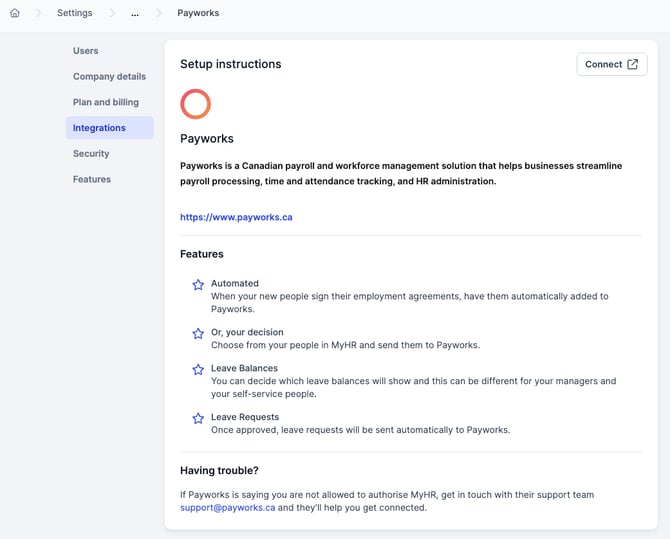
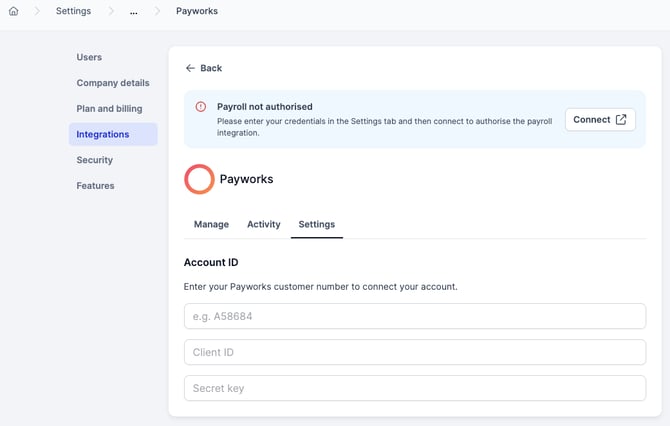
You'll be asked for three things:
- Customer Number: find this in Payworks under Payroll > Business Info, below the Company Name field. It also appears in the top-right corner of the navigation bar under your company name.
- Client ID: provided by Payworks when your API access was enabled.
- Secret Key: provided alongside your Client ID.
Enter all three and click Connect.
Step 3: Configure your settings
After a successful connection, you'll land on a settings screen. Click Refresh to pull the latest data from your Payworks account, then configure the following:
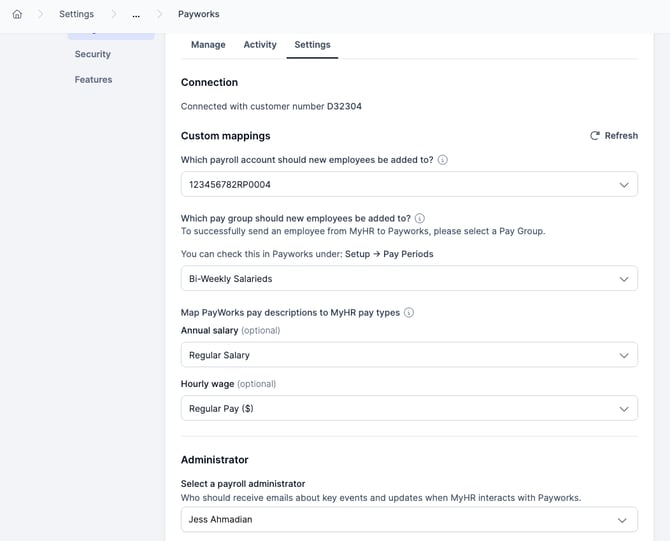
- Default payroll account: if your business has more than one CRA or business number, choose which one new employees should be added to by default. Most customers have just one, in which case this is set automatically.
- Default pay group: if you have more than one pay group, select the default for new employees. You can view your pay groups in Payworks under Payroll > Pay Groups.
- Pay description mapping: MyHR uses two pay types (Annual salary and Hourly wage). Map each one to the corresponding pay description in Payworks so we know how to categorise people when they're added.
- Payroll administrator: select the MyHR user who will manage the payroll integration going forward.
Step 4: Link your people
For a full guide to the integrations area, including linking, unlinking, and resolving errors, see Navigating integrations in MyHR.
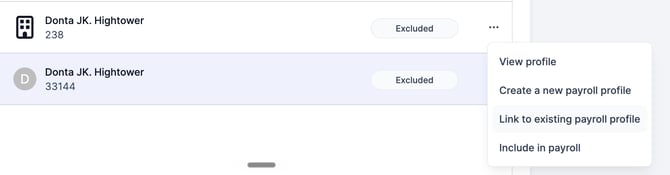
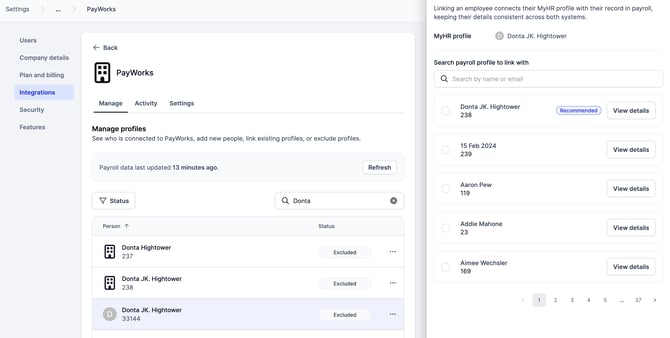
Go to the integration and select a person. Click the accordion next to their name and you'll see two options:
- Add to Payworks: if the person doesn't exist in Payworks yet, this will create them.
- Link to existing: if the person is already in Payworks, link them here. Once linked, any updates you make in MyHR will flow through to Payworks automatically.
Known limitations
| Limitation | Detail |
|---|---|
| Leave balances not available | Payworks doesn't provide balance data via this integration. Employees won't see leave balance information in MyHR. |
| Leave request sync not currently available | Approved leave is not sent to Payworks automatically. Leave must be entered in Payworks manually for now. |
| Edits to approved leave stay in MyHR only | Once leave has been sent to Payworks, changes made in MyHR won't flow through. Update Payworks directly if anything changes. |
| Employee creation can fail if config isn't resolvable | MyHR tries to auto-derive business number, pay group, earning description, and hours per pay period from your existing Payworks employees. If it can't, creation fails with a message explaining what to fix. Creating one employee directly in Payworks first gives MyHR something to work from. |
Support with your integration
If you're having trouble linking up your employees or have questions about the integration, message the MyHR team via the Ask Us chat feature or call us on - 1 855 694 7224 and the MyHR team will be able to help you out.