
.jpg?width=500&height=762&name=Smart_Agreements_Design_D3-01%20(1).jpg)
- Step 1: Getting started
- Step 2: Select your clauses
- Step 3: Personalise the cover letter
- Step 4: Generate, sign and send the agreement
Onboarding folders and documents
Overview
Smart Agreements is MyHR's self-serve employment agreement tool. It lets you generate a complete, customised employment agreement directly in MyHR — built around how your business works, with MyHR automation handling the rules. You're in control at every step, and our team is always available to help.
Instead of filling in a form and waiting for MyHR to prepare a document, you complete the agreement yourself through a guided, step-by-step flow. MyHR automation applies the right rules based on your settings, and you review and customise everything before generating the final document.
Fast Track is being retired. Smart Agreements is what replaces it — same 4-hour (business hour) SLA, now built into the platform.
Not sure if your account has Smart Agreements? Contact us via Ask Us in MyHR.
How Smart Agreements works
When you add a new person and request an employment agreement, accounts with Smart Agreements will see an extended flow with a few additional steps.
Step 1: Getting started
- Go to Add > Person, or HR Services > Employment Agreement or HR Services > Update agreement or Person > HR requests
- Fill in or update the employee's personal, job, employment, and remuneration details:
- If you have multiple employing entities, choose the one that applies to this employee
- If you have a collective agreement, choose the right one for this employee
- Check the recommended trial or probation period
- Add any additional benefits that need to be written into the agreement. If a benefit needs its own manual clause, let our team know, we'll set it up once, and it'll generate automatically from then on
- Select Next to begin the Smart Agreements flow
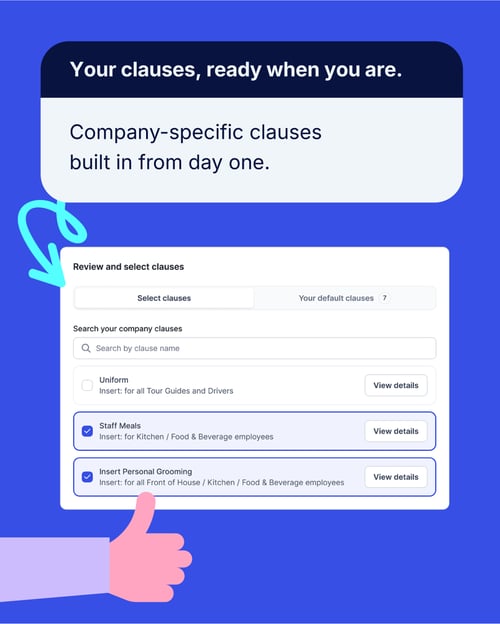
Step 2: Select your clauses
Review the clauses for the agreement:
- Auto-applied clauses: MyHR has selected these based on employment type, region, and your account settings. Review, but you usually won't need to change them
- Optional clauses: add extras where relevant (restraint of trade, trial period, specific leave entitlements)
- Editable clause text: select a clause to view and edit the wording
Select Next when you're happy with the clause selection.
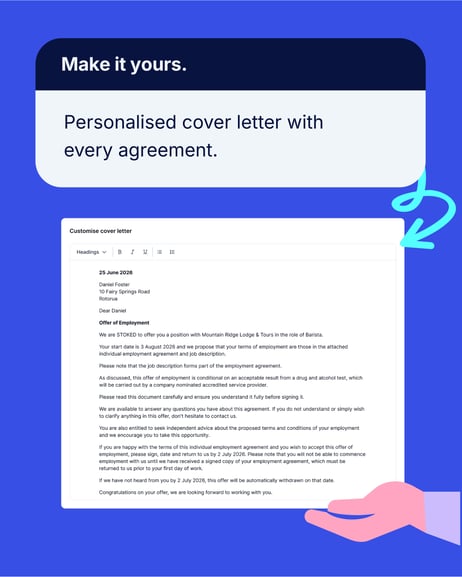
Step 3: Personalise the cover letter
Review and edit the cover letter that goes out with the agreement:
- Open the Automations tab to see which of your business rules were applied automatically, and, if any weren't, why
- Return-to-us dates and scenario-specific text are calculated for you
- Check the summary of changes for anything updated since the last agreement
- Edit the cover letter text directly, changes save as you type
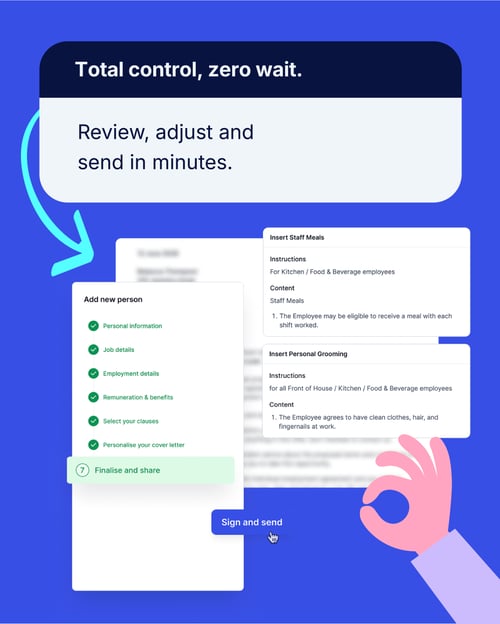
Step 4: Generate, sign and send the agreement
Preview the complete agreement before it goes out:
- Select Back to change anything from an earlier step
- Select Generate Agreement to move to Finalise and send: preview the final document, sign digitally or choose print and sign, and send the invite straight to your new hire, all from one screen
- Their onboarding plan is already attached here too, with important tax and KiwiSaver forms included by default, review or swap it before you send
Editing after the agreement is generated
- Before you've signed: Select Edit agreement to go back into the flow.
- Changing clauses or the cover letter? Make your edits, then hit Generate again
- Changing employment details? Review and submit those changes first, before you move on to clauses and cover letter — this makes sure they carry through correctly when the agreement regenerates
- After you've signed, but before the employee has: Contact us via Ask Us — we'll pull the agreement back, make the changes, and reissue it
- After both parties have signed: You'll need a document correction letter. Submit an HR request from the employee's profile
Approvals and notification workflows
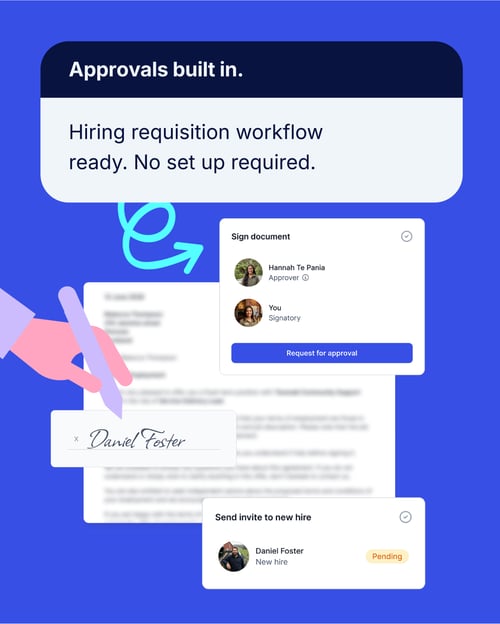
Need someone told when an agreement's been generated, or signed off before it's sent? We can build that in for you, this feature is only available if you have Smart Agreements enabled.
How it works
We turn the business rules you've already given us into automated workflows. For example:
- Every agreement request notifies Jane Doe in payroll
- Every full-time agreement needs sign-off from John Doe (CEO) before it reaches the new employee
- Agreements for the Sales team notify the office manager and require approval from the Head of Sales
Approvals
- Once the agreement is generated, the requester sees an on-screen note that it's gone for approval
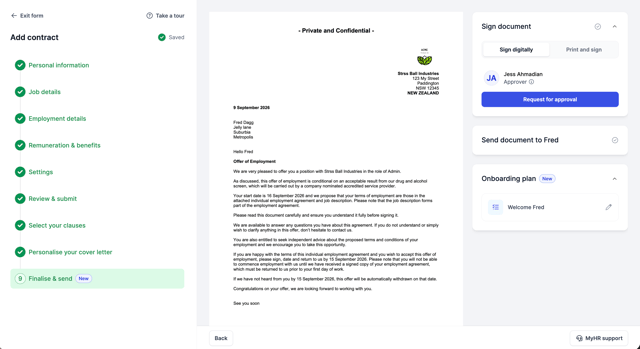
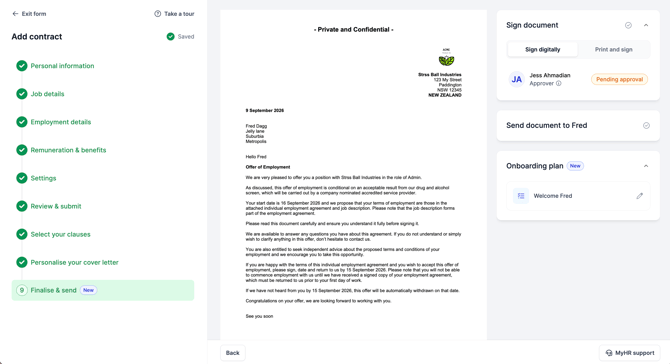
- The approver gets an email with a link straight to the agreement, where they select Approve/decline
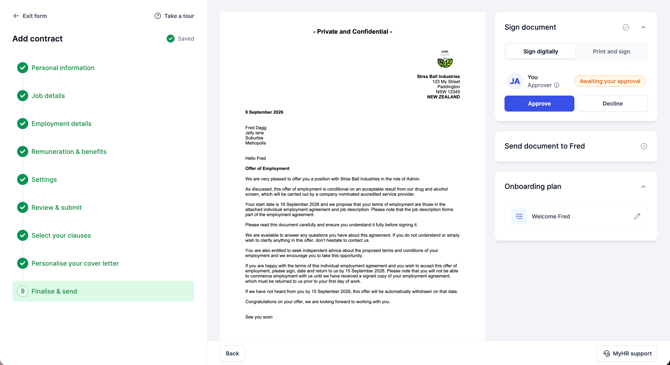
- Once approved, either person can sign and share the agreement with the new employee
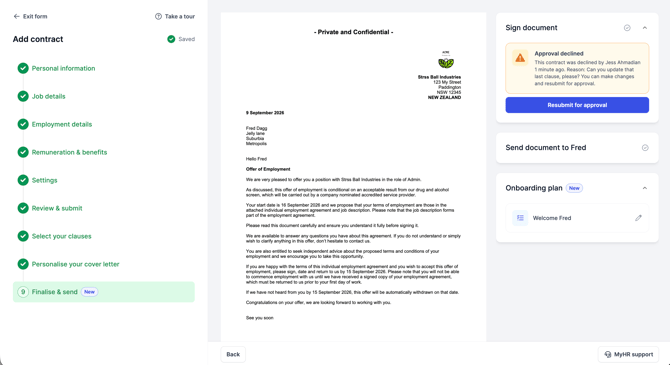
- If Declined, the user will be prompted to advise why, and then it will be sent back to the original person to update and request for reapproval
Notifications (no approval required)
- Once the agreement is generated, the requester sees an on-screen note that a notification's gone out
- The requester can go ahead and sign and share the agreement straight away
You can have multi-step approval/notification workflows. You may need to notify someone and get approval, we can do that for you.
Do your custom rules need to be changed? Contact us via Ask Us and we'll update them.
Their onboarding plan, ready to go
Once you generate the agreement, MyHR automatically creates an onboarding plan for the new employee and attaches it, no separate step needed. It comes pre-loaded with the essentials, including their tax and KiwiSaver forms, so new starters can get those sorted alongside the rest of onboarding, before day one.
Want to add more? Create your own folders, upload your own documents, and add them to the plan any time.
See our detailed knowledgebase article about document folder management.
Auto-save
Your progress saves automatically as you move through each step. Stepped away? Head back to the employee's profile and select the agreement to pick up where you left off.
Guided product tour
First time using Smart Agreements? A guided tour walks you through each step. To run it again any time, select Take the tour from within the flow.
Our team
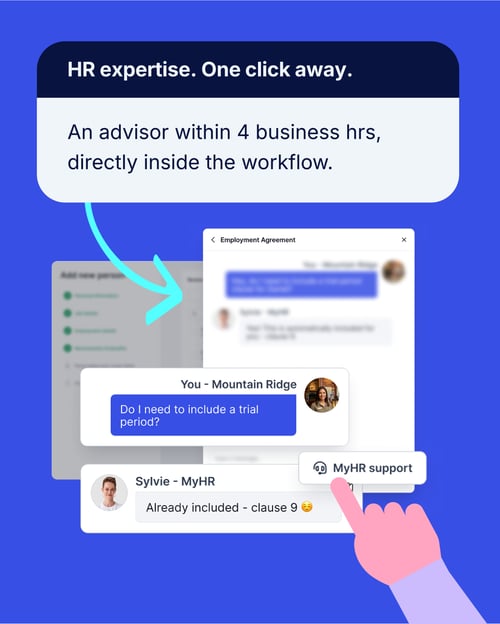
Wherever you are in the process, we're here, for setup questions, clause advice, or if something's gone wrong. Get in touch any time via Ask Us, and we'll come back to you within 4 business hours.
FAQs
How do I know if my account has Smart Agreements?
If your account has access, you'll see the additional steps automatically when you go through Add Person > Request Agreement. Seeing the standard form only? Get in touch and we'll let you know when your account's switched on.
Can I use Smart Agreements for all employment types?
Smart Agreements currently support permanent full/part time, fixed-term, and casual agreements. The employment types available on your account will show up in the flow.
Change in employment type or employment location?
These requests will still come to our team. We will guide you through the complexity of these requests and ensure you are set up for success.
Can I edit a clause after moving to the next step?
Yes, use Back to return to any earlier step and make changes. Your progress on later steps is kept. To edit a specific clause, select it and then select the Edit button.
It says I have been automatically upgraded, can I opt-out?
Your automatic upgrade is valid for 60 days, we will notify you when it's close to the upgrade date, you can opt-out directly in the app.
What happens if I opt-out?
Our standard agreement turnaround time will remain at 48 hours, and there won't be a Fast Track option.
The agreement I generated has an error, what do I do?
Haven't signed yet? Cancel and regenerate. Already signed? Contact us via Ask Us and we'll pull it back and reissue it.
What's happening to Fast Track?
Fast Track is being retired, Smart Agreements is its replacement, with the same 4-hour SLA built into the platform. If your account doesn't have Smart Agreements yet, your existing agreement process is unaffected for now.
Do new employees still need to fill in tax and KiwiSaver forms separately?
No, these are now built into their onboarding plan automatically, so they complete them as part of the same process.
Support
Contact us via Ask Us in MyHR, or call:
- NZ: 0800 69 47 69 or +64 9 887 3345
- AU: 02 7908 2240
- CA: 1 855 694 7224