
Overview
Onboarding plans are now created and attached automatically once an employee's agreement is generated, including their tax and KiwiSaver forms as default tasks. You can still edit the plan afterwards to add training, swap documents, or tailor it to the role.
💡 What your new hire sees: their onboarding plan and reminders show at the top of their MyHR homepage, front and centre alongside what matters most. See our employee self-service guide for the full employee-side view.
Running the plan
Once it's published, owners, managers, and the employee can all view the plan and act on it, either via the task reminder or from the plan in the person's profile.
- Keep tasks moving. Employees can click into a task and mark it complete themselves, and owners or managers can mark it complete for them too if it's already been done another way. Need to flag something? Add a comment, and attach a file if it helps.
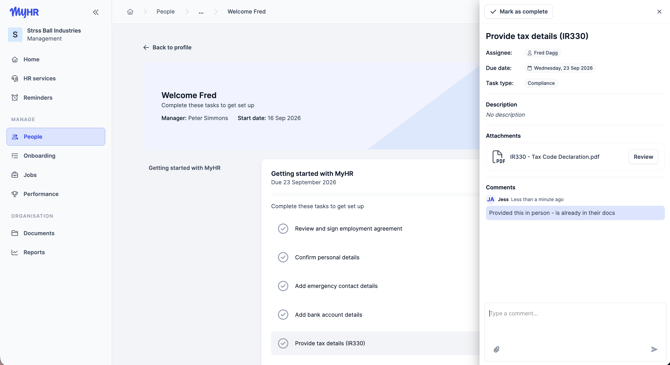
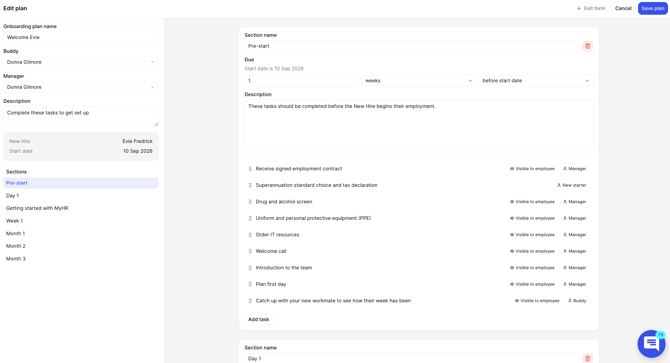
- Update the plan as things change. Select Edit plan, then add, replace, or remove tasks and documents, say if the new hire needs extra training or a different resource. Changes save automatically, select View plan to jump back into the live plan.
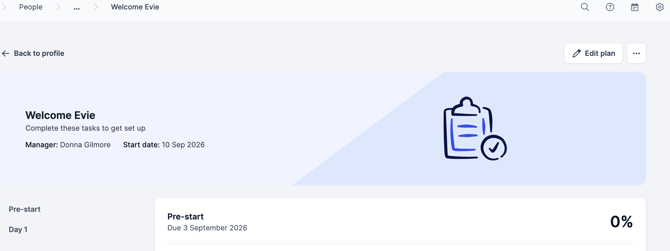
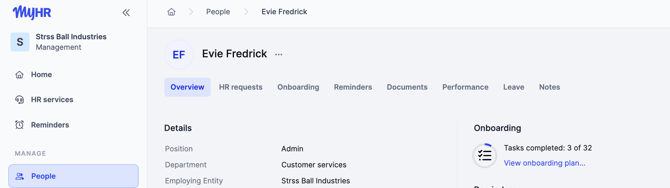
- Check how it's tracking. Open an employee's profile for their individual progress, or run the Onboarding Summary Report in My Business for a view across everyone onboarding right now.
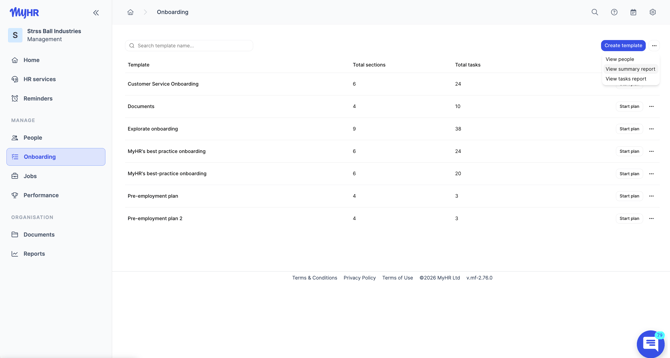
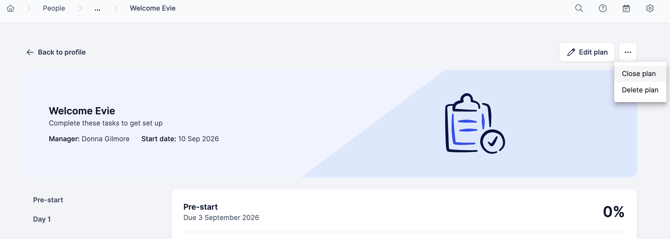
- Close it out once everything's done. Select Close plan in the right-hand menu panel to lock it into view-only mode. Once closed, it can't be edited and tasks can't be marked complete or incomplete, so make sure it's up to date first.
💡 Tip: Anyone with access to the onboarding plan can also add comments on tasks in the view, employees and managers alike, and attach a file to a comment (a photo, a completed form, anything relevant to that task). Tasks with comments show a comment icon when viewing the plan.
⚠️ Important: Once a plan is closed, it can't be edited and tasks can't be marked complete or incomplete. Make sure the plan is fully up to date before closing.